
Tweak library
Debloat, Windows, registry, services and network tweaks, tagged by what they improve: FPS, latency, network latency or background load.
previous value written backUNK scans your PC, builds a plan for that exact hardware, and applies it in one press. You see every change before it happens, and each one can be put back.
Download for WindowsThe first release is not published yet, so there is nothing to download from this page today.
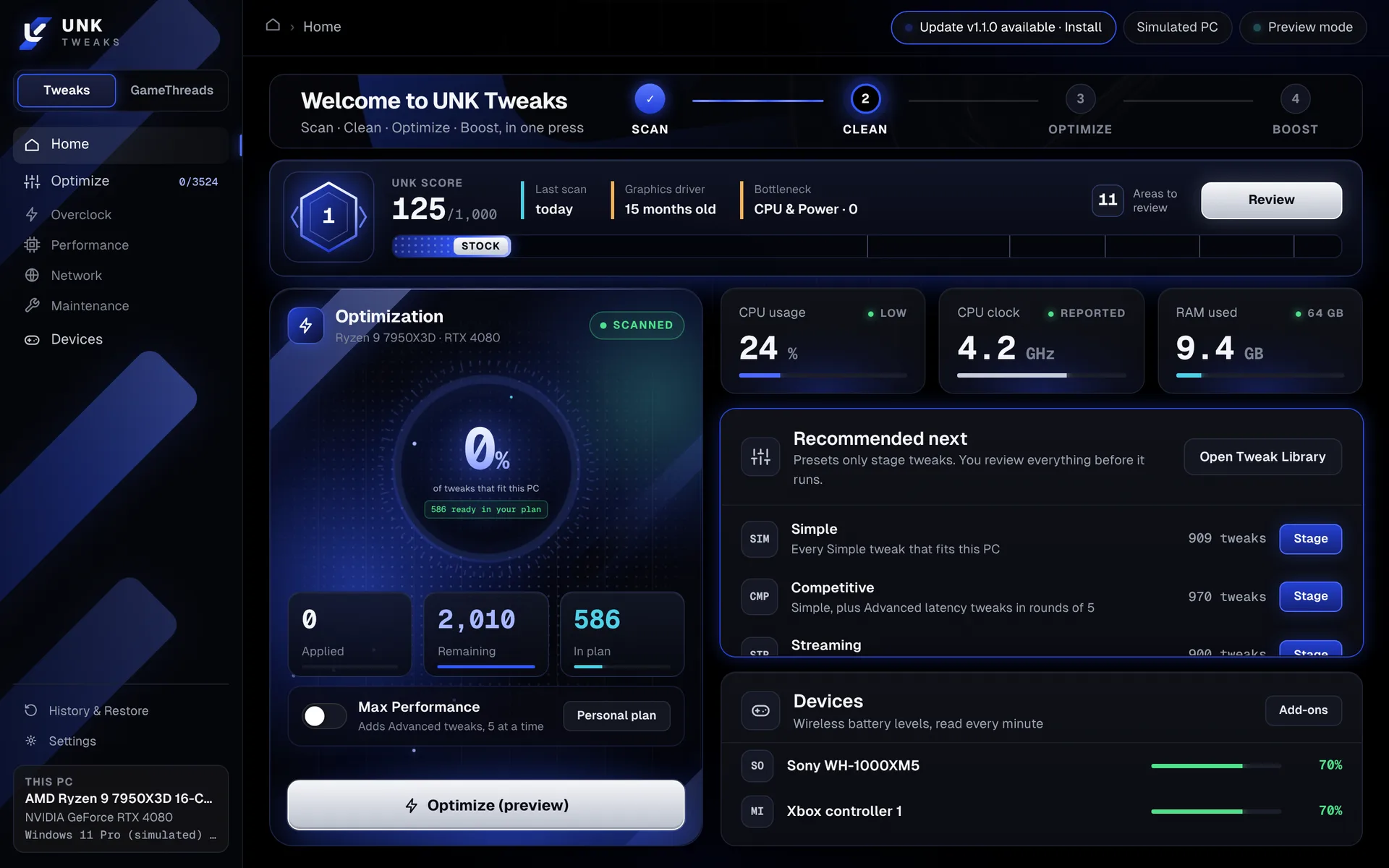
No preset to pick and no list to tick. The plan is built from what the scan finds on your PC, and every tweak in it comes with the reason your PC got it.
Reads your hardware, Windows settings, installed games and anti-cheat. Changes nothing.
Switches off the startup apps, scheduled tasks and background services it found running.
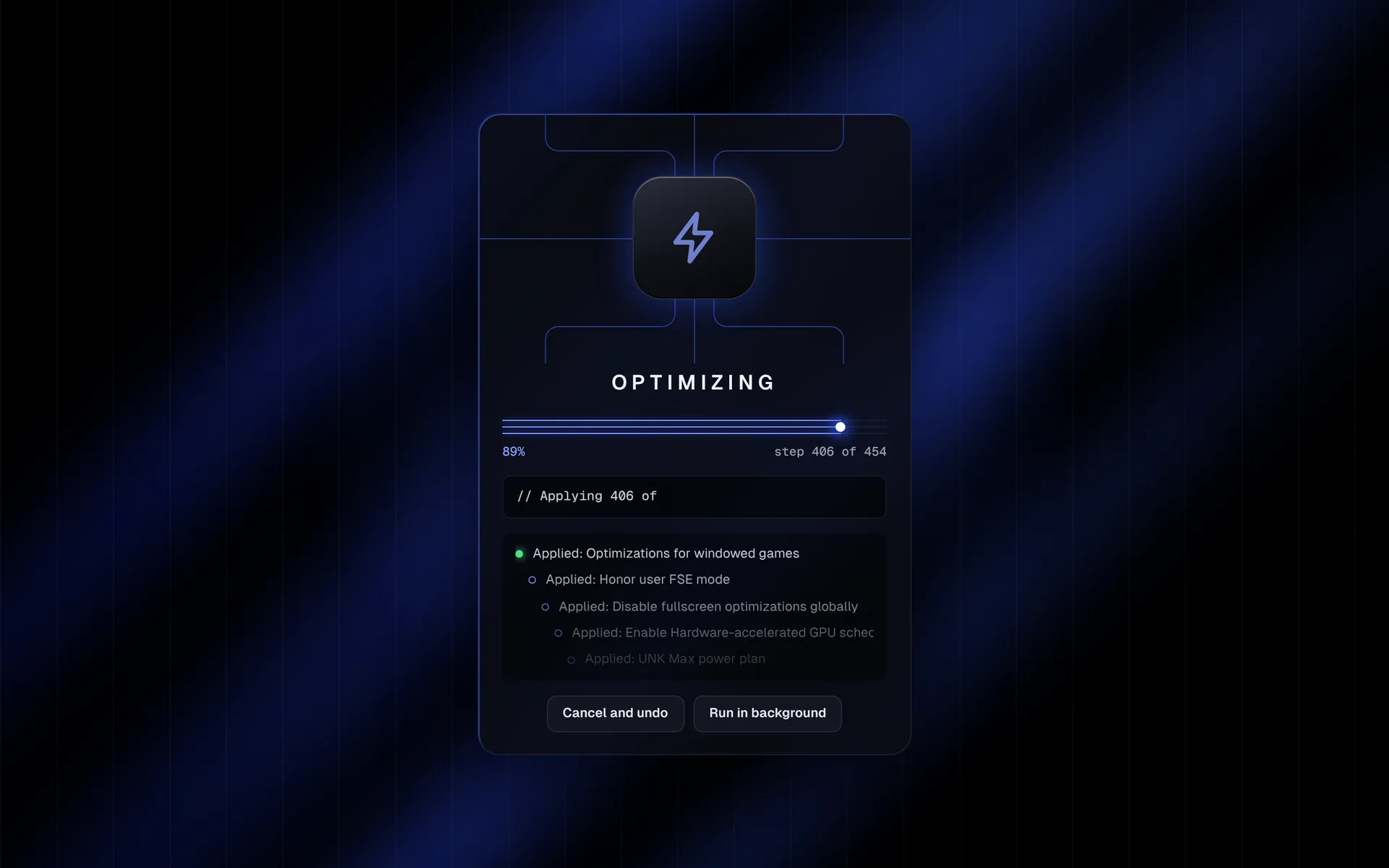
Applies the settings that fit this PC: power, scheduler, network adapter and per-game options.
Turns on GameThreads: your games get the fast cores and High priority, background apps step aside, and standby memory is cleared when RAM runs low.
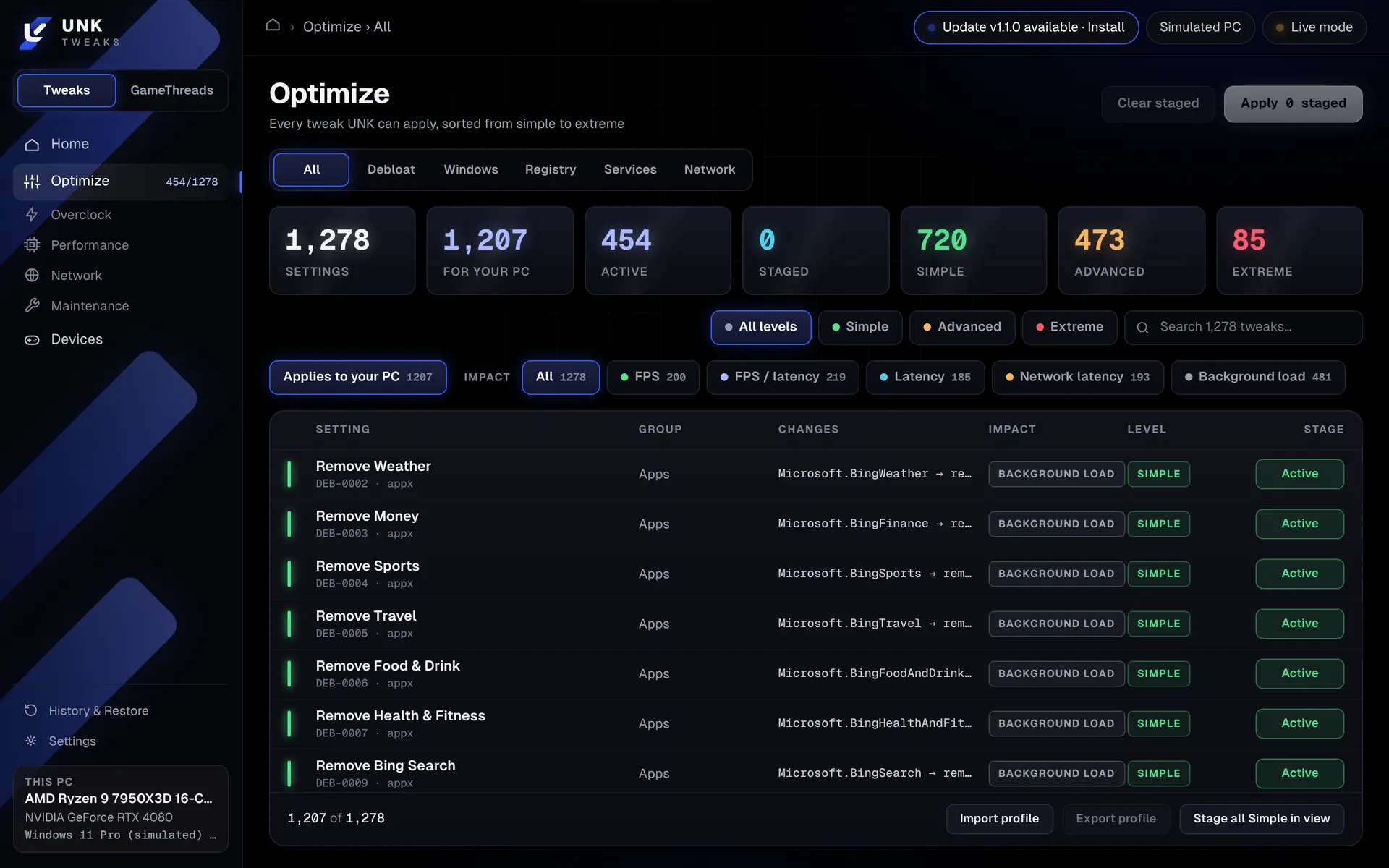
Every tweak, sorted from Simple to Extreme, with what it changes and what it helps. Filter to the ones that fit your PC.
each tweak has its own Undo in HistoryThe green line under each card is the same thing the app writes to its ledger when it makes a change.
Debloat, Windows, registry, services and network tweaks, tagged by what they improve: FPS, latency, network latency or background load.
previous value written backA power plan of its own. While plugged in, the CPU never clocks down or parks cores, and disk, PCIe and USB never save power.
your old plan returns, UNK Max is deletedPins your games to the performance cores and keeps background apps off them. It knows performance cores from efficiency cores.
off switch, nothing persistsOn AMI boards, UNK exports your BIOS settings, shows a diff of what will change, and writes it only after you type a confirmation.
untouched backup, importable againRemoves the old graphics driver with DDU, restarts, and opens the new installer you downloaded from the maker.
none. The new driver replaces the old oneCompare frame-time recordings before and after a change. Set lasting process priorities. Switch devices to MSI interrupts.
every rule is a recorded changeA bufferbloat grade from A+ to F, jitter, packet loss and server-region pings, measured on your line. It picks fixes from the result, applies them, and tests again.
changes that test worse are revertedOne score out of 1000 and twelve area scores, built only from verified settings and real measurements. It shows your bottleneck and the five fixes worth the most.
read-only. Fixes use the normal reviewBattery levels for Bluetooth devices and Xbox controllers, in the app and optionally next to the Windows clock.
read-only, nothing to undo| A typical tweaking tool | UNK Tweaks | |
|---|---|---|
| Before it changes anything | A list of checkboxes | Preview mode is on by default. It shows the current value and the new one, and writes nothing. |
| Undo | A restore point, if you made one | A restore point, plus the old value of every single change, undoable one by one. |
| Risky tweaks | Mixed in with the rest | Labelled Extreme, applied one at a time, and only after you type a phrase. |
| Anti-cheat | Not mentioned | Never touched, and no tweak in the app is an anti-cheat risk. |
| Performance claims | A percentage on the home page | None. You measure your own games in the Benchmark page. |
| Price | Free tier, paid tiers for the rest | Free. Everything is in the one download. |
In Live mode UNK makes a Windows restore point and backs up the registry keys before it writes anything.
The value from before is saved for each tweak. Undo one, undo a session, or undo everything.
UNK reads each setting back after writing it, and tells you if Windows did not accept the change.
Advanced tweaks go five at a time, so if something feels worse you know which round did it.
Tweaks for other hardware or other Windows versions are marked as not available and cannot be applied.
The uninstaller asks whether to undo all UNK changes first, and Yes is the default answer.
How much a tweak helps depends on your hardware, your games and what was slowing your PC down in the first place. Some PCs gain a lot and some gain nothing. UNK does not put a percentage on this page because it has not measured your PC. Record a game before and after, compare the two in the Benchmark page, and keep what helped.
One file, UNK-Tweaks-Setup-x64.exe. Everything it needs is inside.
Click through the installer. Windows asks for administrator rights, because tuning Windows needs them.
UNK opens in Preview mode. Look at what it would change, then switch to Live when you are ready.
The installer is not code-signed yet, so Windows SmartScreen may say "Windows protected your PC". Choose More info, then Run anyway. To be sure the file is the real one, compare it with the SHA-256 checksum next to the download.
Yes. There are no tiers and no account. The whole app is in the one download.
Yes. History lists every change with the value from before. You can undo a single tweak, a whole session, or everything at once. A few removals, such as built-in apps, come back only if Windows still has their files; the app says so on those tweaks before you apply them.
UNK never changes anti-cheat files, services or processes. It also leaves out every tweak an anti-cheat might object to, such as turning off Windows security features or forcing game priority through the registry. Those are not in the app at all. No tool can promise what a game publisher will do, so keep to Simple and Advanced tweaks if you play ranked.
No. The Overclock page holds CPU, RAM and GPU reference guides that you follow yourself. The one thing UNK writes below Windows is BIOS settings on AMI boards, through a guided flow with a backup and a typed confirmation.
Windows 10 and Windows 11, 64-bit. Tweaks that need a newer build than yours are shown as not available.
No. There is no telemetry and no account. The only network requests are the update check, and the tests and downloads you start yourself.
That depends on your PC, and this page will not guess. Use the Benchmark page to compare a recording from before with one from after.